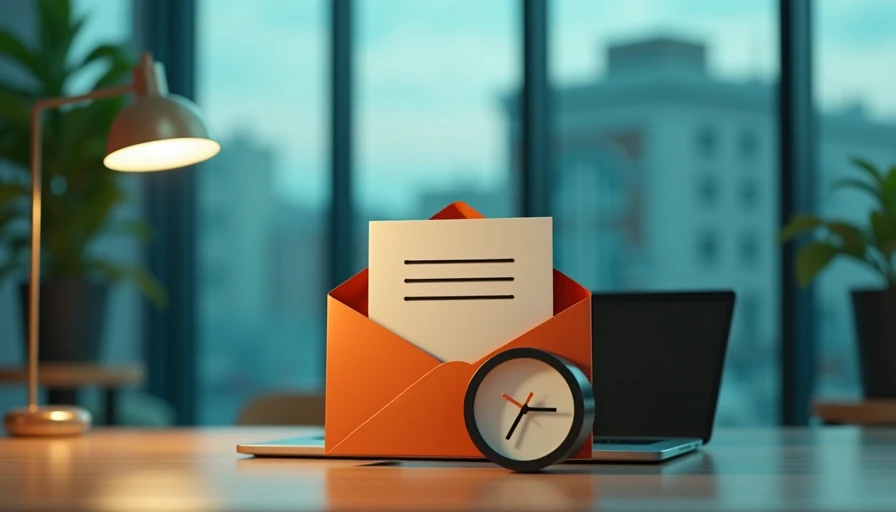
An outlook recall email can feel like the office equivalent of grabbing a coffee mug before it hits the floor. Sometimes you can stop the mistake. Sometimes the message has already landed, been opened, or left your company’s Microsoft 365 environment. I tried the process at my desk so you do not have to guess what each button means, and I also tested a simple ChatGPT workflow for writing the follow-up when recall was not enough.
The important point is that recall is not a time machine. It is a request handled by Outlook and your organization’s mail system. Your result depends on the recipient, the account setup, and whether the original message has been read.
What an Outlook recall email actually does
In the classic Outlook desktop app, recall usually means asking Microsoft Exchange to remove the original message from a recipient’s mailbox. You generally find the sent message, open it in its own window, choose the File menu, select Info, and look for a resend or recall option. The exact labels can differ by Outlook version and company settings.
A recall is most likely to work when you and the recipient use Microsoft 365 or Exchange within the same organization, and the recipient has not opened the message. If the message went to a Gmail address, a personal Outlook.com account, a customer outside your company, or a distribution list, the feature may not help. New Outlook and Outlook on the web also do not always present the same controls as classic Outlook.
An outlook recall email may generate a notification telling the recipient that you attempted a recall. That notification can create more attention than the original mistake, so I do not use recall automatically for every typo. A harmless missing comma does not need an office-wide alarm. Sending confidential information to the wrong person is a different situation and deserves immediate action.

My quick desk workflow before clicking Recall
First, I check the Sent Items folder and open the message. I confirm the recipients, attachments, subject line, and time sent. This takes less than a minute and prevents me from trying to recall the wrong message. Next, I ask what outcome I actually need. Do I need the file removed, the incorrect instruction corrected, or simply a cleaner version sent?
If the email contains sensitive company data, I contact the appropriate manager, security team, or IT help desk immediately. I do not wait several hours to see whether an outlook recall email succeeded. A recall attempt is useful, but it is not a substitute for reporting a possible data exposure.
If the message is merely embarrassing, I usually send a short correction instead. For example: “Correction: The meeting is Thursday at 2 p.m., not Wednesday. Please use the calendar invitation for the current details.” That is clearer than a dramatic explanation about how Outlook betrayed me before my second cup of coffee.
After requesting a recall, I watch for the recall status message. It can show whether the attempt succeeded, failed, or is still being processed for different recipients. A mixed result is normal when several people received the same message.
How ChatGPT helped me write the follow-up
ChatGPT cannot recall a message from Outlook, and it should not be given confidential customer records, employee information, passwords, contract terms, or private attachments. What it can do is help turn a rushed correction into a calm, useful note.
My prompt looked like this: “Rewrite this correction in a direct, professional tone. State the accurate date, explain that the earlier email should be ignored, and keep it under 60 words. Do not add facts.” I replaced real details with placeholders before pasting anything into the chat. The resulting draft was usable after I checked every date and recipient.
For a message involving an outlook recall email, I would use a prompt such as: “Draft a brief follow-up to an internal team. The previous email had an incorrect deadline. Tell readers not to rely on the earlier deadline, provide the corrected deadline, and avoid blame or unnecessary detail.” This gives ChatGPT a narrow writing job instead of asking it to make a judgment about the incident.
I saved about five minutes because I did not spend that time rewriting the same apology three different ways. The verification still took longer than the drafting, which is exactly how it should be.
When recall fails and what to send instead
Recall commonly fails when the recipient has already opened the message, uses an outside email system, or receives mail through a setup that does not support the feature. It can also fail when the recipient has rules that move messages, when the organization blocks recall, or when the person reads mail on a device before the recall is processed.
If an outlook recall email does not work, do not send a second message that says only “Please disregard.” Give the reader the information needed to act correctly. State what was wrong, identify the replacement information, and say which message or attachment should be ignored. If the correction affects a deadline, price, shipment, meeting, or customer commitment, put the corrected item in the subject line or first sentence.
A practical example is: “Correction: Use the attached budget dated March 12. The spreadsheet sent at 9:14 a.m. contains an outdated total and should not be used.” That is short, specific, and more helpful than a long apology.

A safer correction template for real work
Subject: Correction: Updated project deadline
“Please disregard my earlier email, which listed the wrong deadline. The correct submission date is Friday, April 19, at 3 p.m. Central Time. I have attached the current schedule. Sorry for the confusion, and thank you for using this updated information.”
This template works because it does not pretend the first message vanished. It tells people what to ignore and what to trust. If the original included a confidential attachment, replace the general wording with direct instructions approved by your company’s security or compliance team. Do not attach the sensitive file again unless you know the recipients are correct.
ChatGPT can produce several tones, but I choose the plainest one for work: factual, brief, and free of jokes. Humor that sounds fine in a private chat can look careless when forwarded to a customer or manager. I also remove invented apologies, claims about system errors, and explanations that I cannot prove.
How to prevent the next rushed send
Outlook gives you several ways to create a small safety pause. Depending on your version and organization, you may be able to delay delivery for a short period through a rule, schedule messages to send later, or use a setting that asks for confirmation. These options are different from recall because they prevent a message from leaving immediately rather than trying to retrieve it afterward.
My personal pre-send check has four questions: Are the recipients correct? Is the attachment the final version? Are the dates and numbers accurate? Does the message clearly say what I want someone to do? For external recipients, I add one more question: Would I be comfortable seeing this exact email forwarded?
The best use of an outlook recall email is as an emergency tool, not a normal editing strategy. Check whether the recall succeeded, correct the record promptly, and protect private information throughout the process. No magic. Just a workflow that survived Monday, plus a small pause that can save a surprisingly large cleanup.